


How to Compress Images Without Losing Quality
 Mujahid H.
- March 14, 2026
- 5 min read
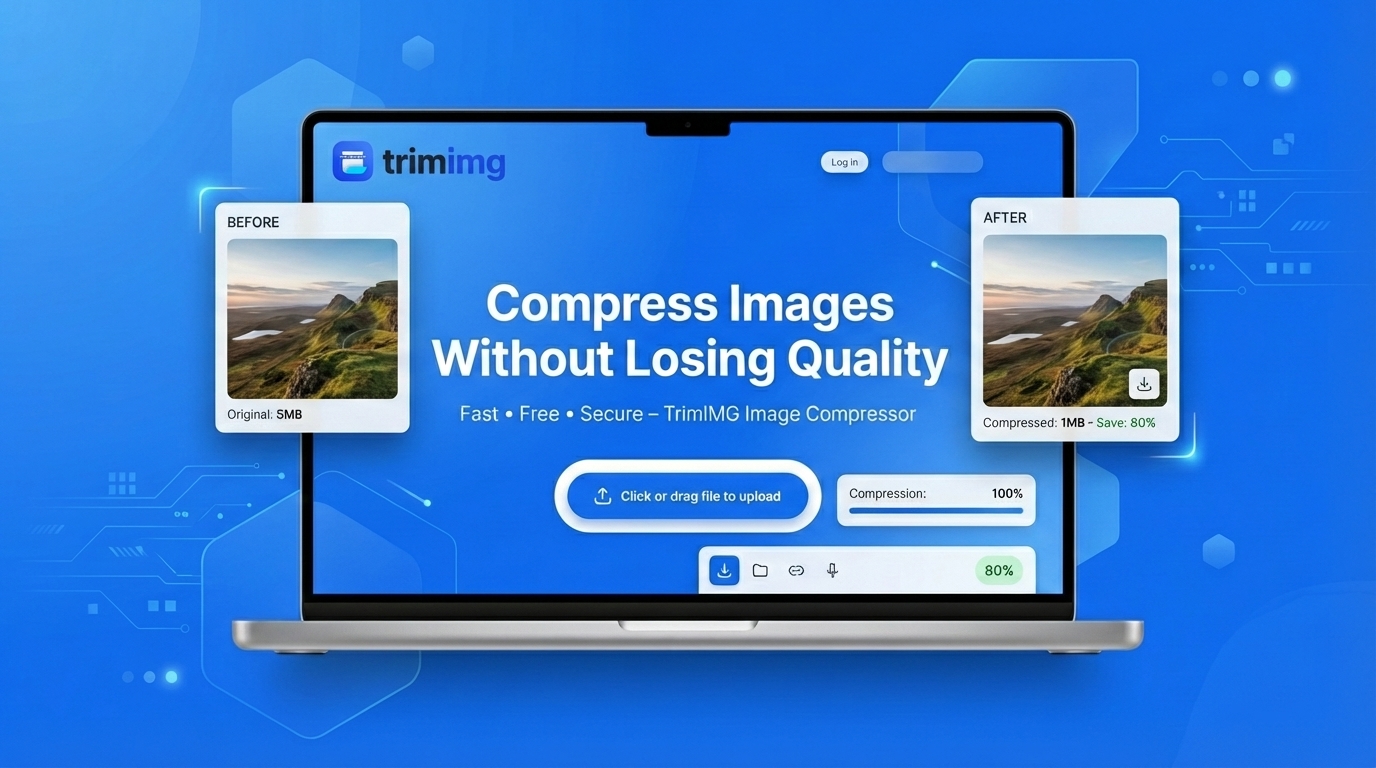
If you have ever uploaded a photo to your website and noticed it loading slowly, the image file size is probably . Big images slow down your web pages, discourage your audience , and even hurt your SEO rankings.
The good news? You can reduce your image size without making them look bad. This is called image compression, and it is one of the easiest procedures you can do to improve your website loading speed on the internet.
In this article, you will learn what image compression is, why it is important, and how to do it in just a few seconds — even if you have not done it before. No technical skill required to use a compressor tool.
What Is Image Compression?
Image compressor is a tool for reducing the image size. When you take a photo from your mobile camera or take an image from google, the image file is much bigger than it needs to be. A file size can be 5MB or more. For a webpage, that is limitless.
Two Types of Image Compression
- Lossy compression: Removes some image meta data permanently. You can get a much smaller file, and most of the time the image still looks great to the human eye. JPG image format uses this method.
- Lossless compression: Reduces image size without removing any image meta data. The quality stays good. PNG files frequently use this method.
Most of the time websites and social media use lossy compression techniques for high quality images.
Why Is Image Compression Important?
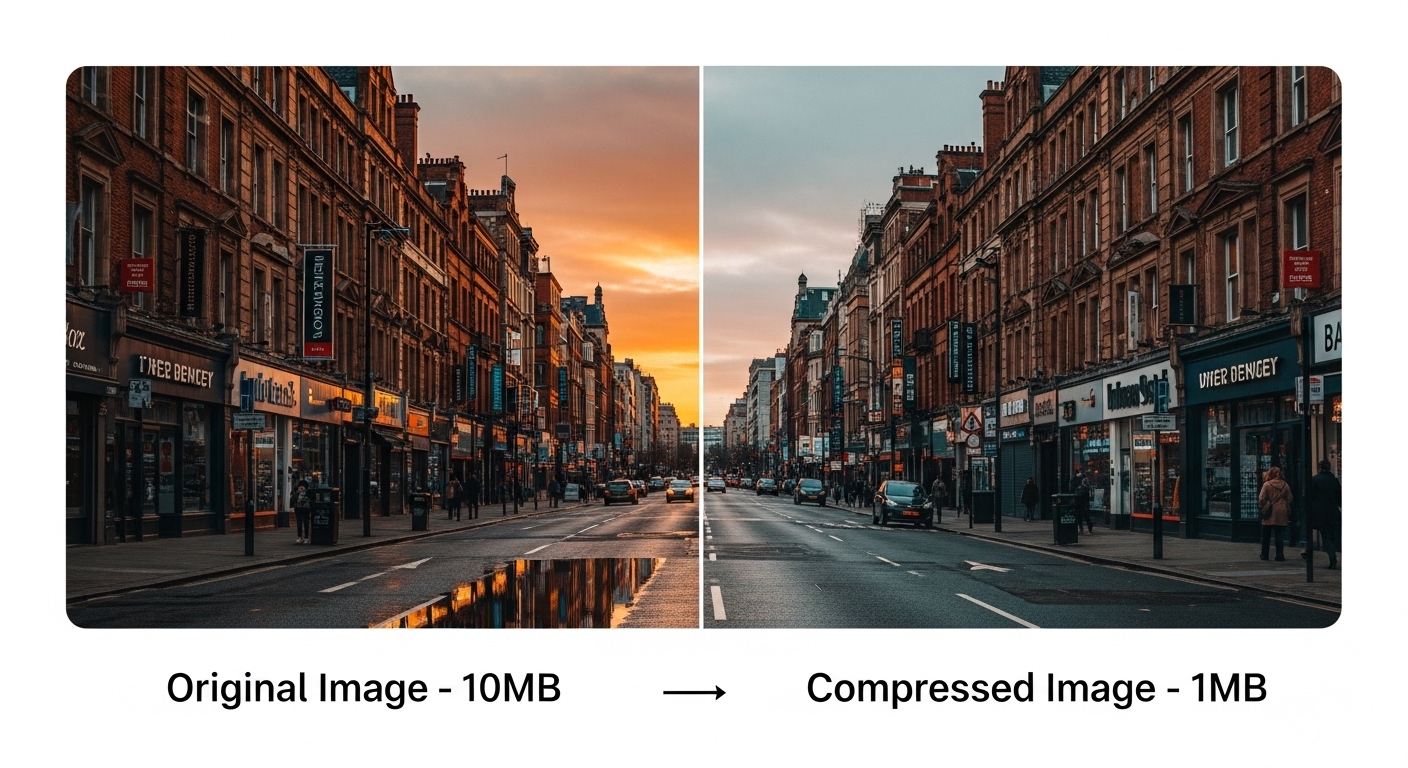
Web Page Load Fast
Expert research shows that half of visitors leave a website if it takes longer than 5 seconds to open the website. Images are usually the heaviest files on a webpage. Compress them and your pages load significantly faster.
Better Google Rankings
Google major update website speed matters in ranking. Slow website pages rank lower. Fast pages rank higher. Compressing your website images is one of the easiest and fast ways to improve your website ranking on Google, Bing and Yahoo.
Less Storage and Bandwidth
If you have a blog or an online store or a tools website or any kind of website you will have to pay for storage and bandwidth. This can be expensive. Small images are a thing because they cost less to store.
Your website can also handle visitors without slowing down when you use small images.
So making your images smaller makes your website work faster. It helps your website rank better on Google. It even saves you money. Compressing your images is a thing to do but it makes a big difference.
Try Others Compressor — You can try our other format compressors tools such as PNG Compressor, JPG Compressor and WebP Compressor.
How to Compress Images on TrimIMG
By using TrimIMG you do not need to install any software on your system. You can optimize your images directly in your browser. Here is how:
- Step 1: Visit the Image Compressor Tool Page
Go to TrimIMG Image Compressor. No sign-up, subscription and software install needed. Just open the tool and you are ready to use.
- Step 2: Upload or Drag Your Image
Pop the upload button or simply drag your image file onto the dragger field. TrimIMG supports multiple image formats such as PNG, JPG, JPEG, WebP, BMP, SVG, HEIC, GIF, and ICO formats. You can also upload as bulk images at once to save time.
- Step 4: Preview the Result
Before you download, you can compare the original and optimize versions by using the compare tool. You will see the new image size and how much smaller the image has become. Most images reduce size by 50–80% without any visible quality loss.
- Step 5: Download Your Single or Multiple Compressed Image at Once
Last step: Click the download button over the image file and your compressed file will start downloading on your device. That is it. The whole process takes almost 30 seconds. If you want to download all images then you can click on the "All Download" button then images download in a single zip file.
Image Format Comparison Table
Compare compression type, quality, file size and browser support for each format.
| Format | Type | Best For | Quality | File Size | Transparency | Browser Support |
|---|---|---|---|---|---|---|
| JPEG / JPG | Lossy | Photos, blog images, social media | ★★★★☆ | Very Small | No | All browsers |
| PNG | Lossless | Logos, graphics, screenshots | ★★★★★ | Medium | Yes | All browsers |
| WebP | Both | Web pages, e-commerce, apps | ★★★★★ | Smallest | Yes | Modern browsers |
| GIF | Lossless | Animations, simple graphics | ★★★☆☆ | Small | Yes | All browsers |
| BMP | Lossless | Print, editing, archiving | ★★★★★ | Very Large | No | Limited |
| SVG | Lossless | Icons, logos, illustrations | ★★★★★ | Tiny | Yes | All browsers |
Don't Make These Mistakes When compress Images
If we bookmark a good tool, a few major mistakes can affect your final results. Here is what we should follow:
Compressing too much
If setting image quality below 60% creates blurry, pixelated images. Keep file resolution between 75–85% for the best result.
Using the wrong file format
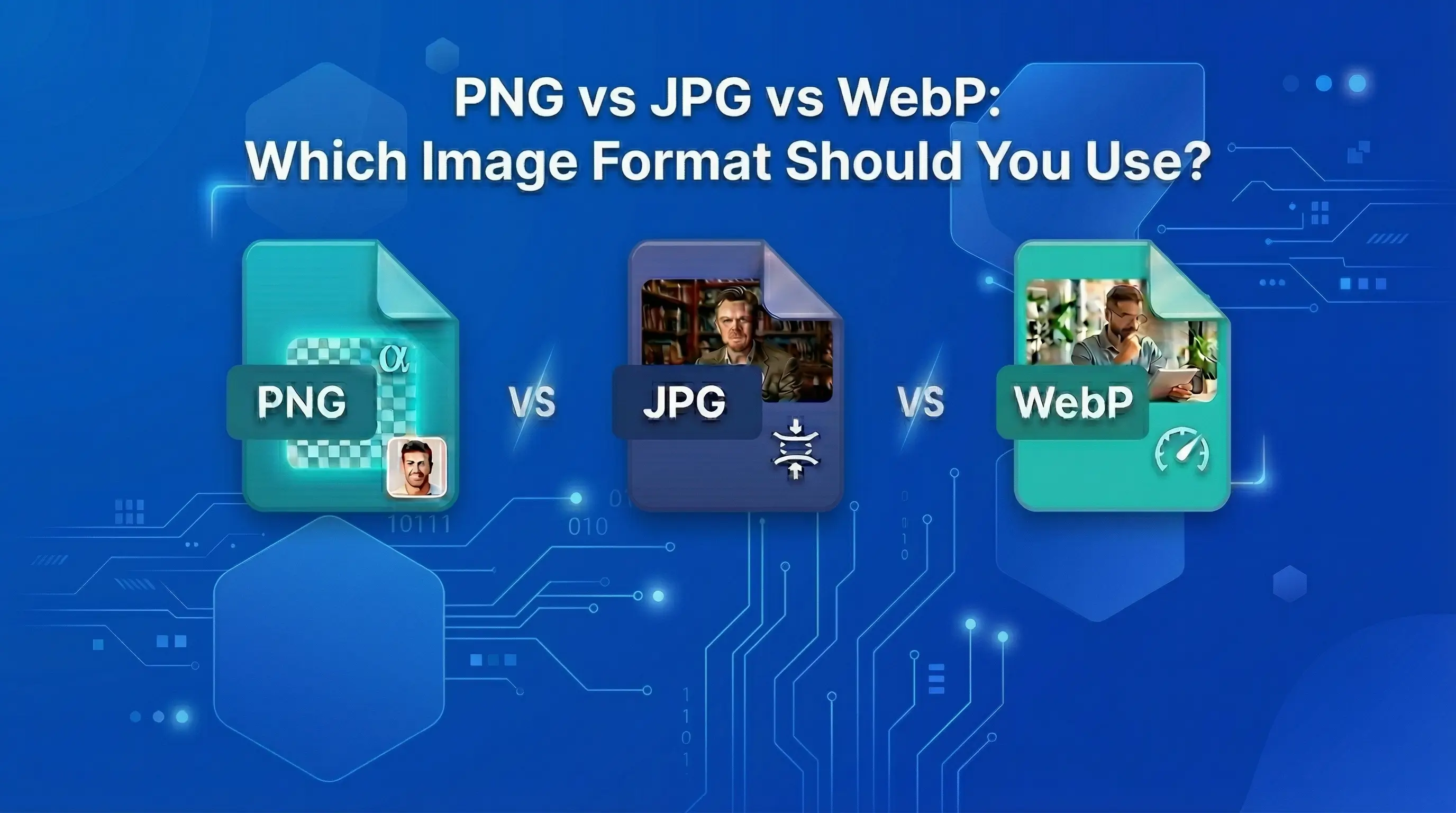
PNG is best for logos, without background images and graphics. JPG is better for capturing weeding and shooting photos. WebP is google format and it is smaller than both.
Repeatedly compressed image
Again and again compressing a JPG file makes it look bad each time. Always start from the original file.
Ignore the preview
Always check the output result of the image before downloading. If image quality is good then you can download or try setting between 75-85% for the best result.
Resizing large images first
If your image is 4000px large but your website only shows it at 800px, resize it first. Use the TrimIMG Image Resizer and then compress for maximum savings.
Frequently Asked Questions
Can image compressing reduce its quality?
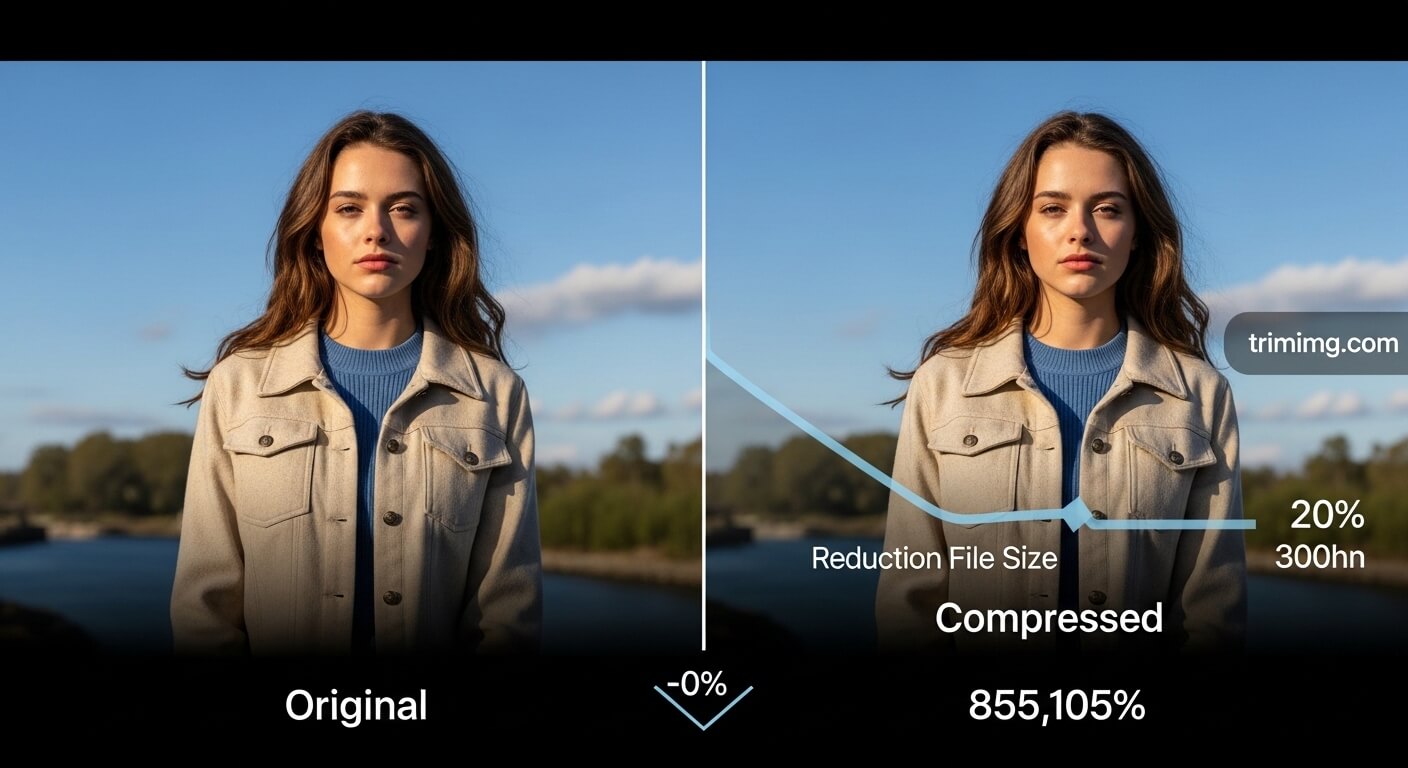
It depends on the compression setting selection. With lossy compression at 75–85%, the seeing difference is almost impossible. TrimIMG uses a smart compression technique to keep your images quality great.
What is the best & popular image format for websites?
WebP is today the best format for website use. It makes smaller files than JPG and PNG while maintaining excellent results. Almost all modern browsers fully support it. If you have JPG or PNG images, you can convert them using the TrimIMG WebP Converter.
How Much Smaller Your Images?
The results differ depending on the original image and format, but mostly images can be reduced by 50% to 80% without any reduced quality loss. A 2MB file can often be shown down to 400KB or less.
Is TrimIMG free to use?
Yes, TrimIMG is totally free. There is no signup required, no watermarks added to your images, and no limits. Your files compress securely and are not stored on our servers.
Can I compress Bulk images at once?
Yes. TrimIMG supports bulk compression. You can upload many images in one go and download them all at once.
Conclusion
Image Compressing is one of the easiest processes you can make your website fast loading, SEO-friendly, and less costly to run.
You do not need to be a visual designer or a web developer. The TrimIMG free tool makes the whole process take under a minute. Upload, compress and download.
Use the TrimIMG compressor tool to reduce your images size today with TrimIMG's free Image Compressor and see the difference for yourself.
Free · No sign-up · Works on all devices
Start Compressing Images Without Losing Quality
Image Compressing is one of the easiest processes you can make your website fast loading, SEO-friendly, and less costly to run. You do not need to be a visual designer or a web developer. The TrimIMG free tool makes the whole process take under a minute. Upload, compress and download.
Found this helpful? Share it with your team:
Related Articles
Hello, it's Mujahid Hussain Creative and Professional Senior Software Engineer with 6+ years of experience building rich and interactive websites. I have a comprehensive understanding of WordPress themes, plugins, databases, and its functions.